CW
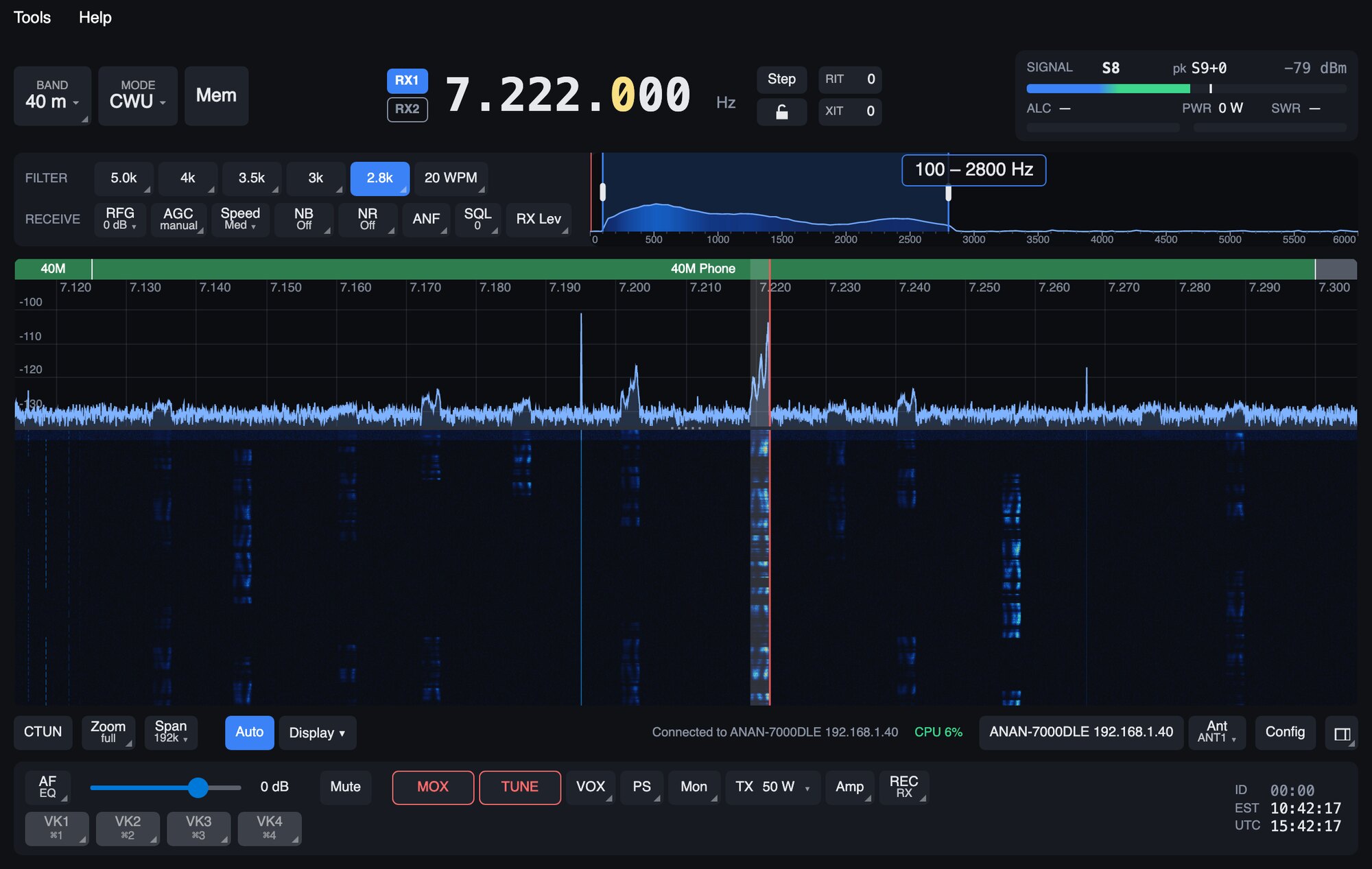
Choose CWL or CWU with MODE, and a WPM button appears beside the filters.
Your paddle or key
Connect it to the radio. Right-click WPM to choose a straight key or iambic A or B, and to set the speed, weight, sidetone and paddle direction. The wheel over the WPM button changes speed at any time.
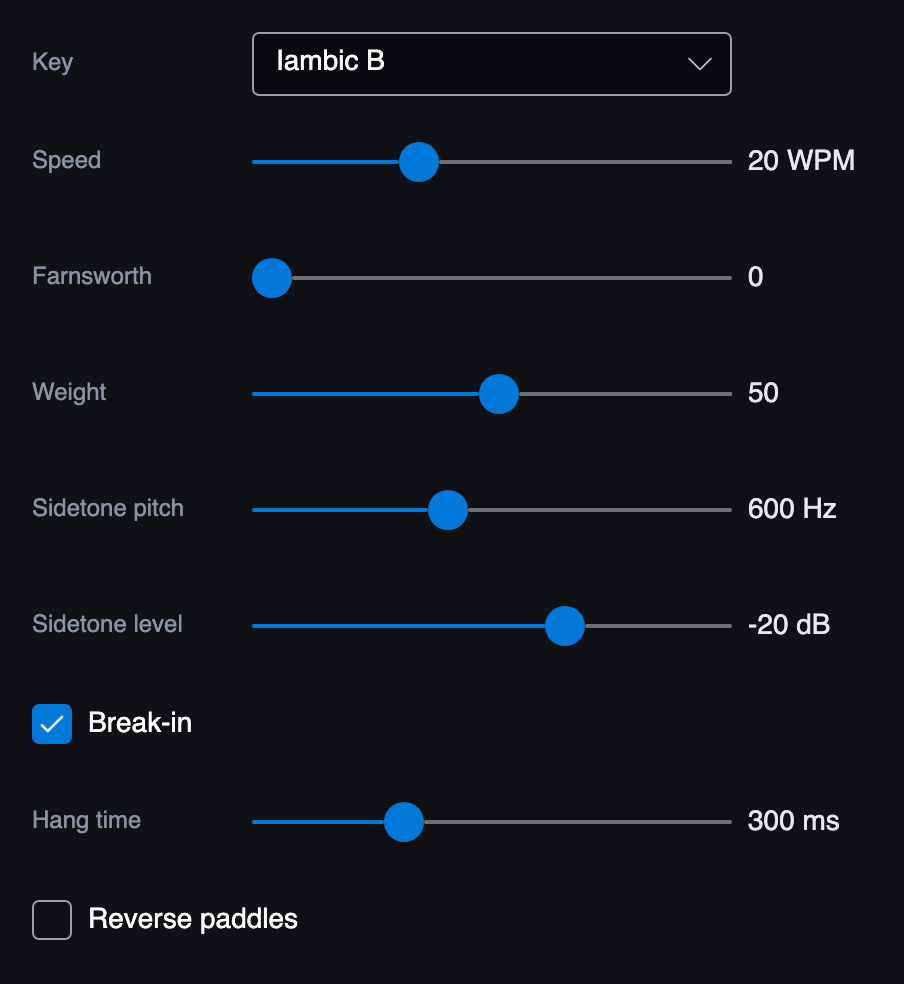
Break-in means keying transmits by itself, and the radio drops back to receive after the hang time. Lower hang times let you hear between words.
Tuning and filters
In CW the frequency shown is the carrier of the signal, and the filter is centred on the dial. Click a signal on the panadapter, or tune until it lines up with the dial line, and you'll hear it at a 600 Hz tone.
The close-up beside the filters is your tuning indicator. It spans 3 kHz in CW, and its dial line sits at the 600 Hz CW offset, not at 0. Tune so the signal's peak sits on that line, in the middle of the shaded filter, and you're on frequency.
Use a narrow filter, 200 to 500 Hz. The receive tone is fixed at 600 Hz, so leave the sidetone there if you want to match signals by ear.
The CW window
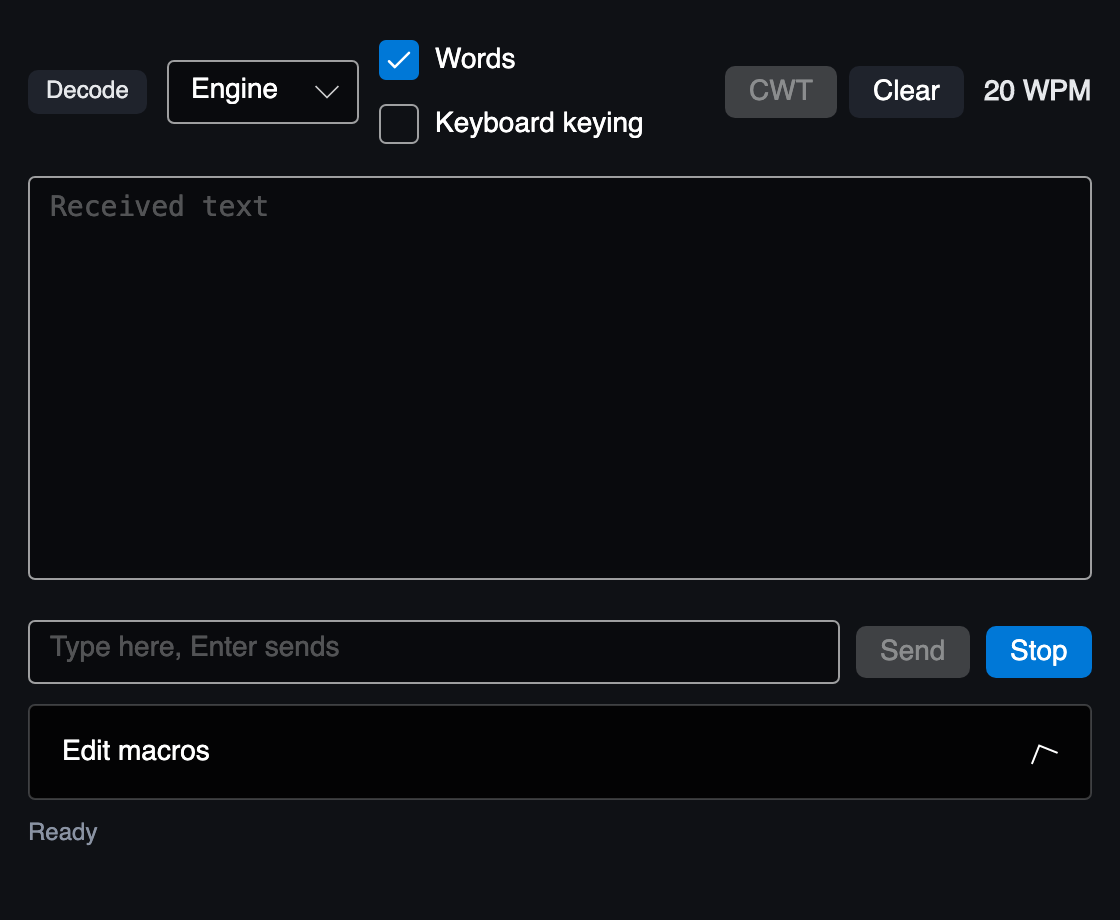
Click WPM to open the CW window, which stays open beside the main window.
Sending from the keyboard
Type and press Enter, or press a macro. Both transmit straight away, so have your antenna or dummy load connected. Stop or Esc ends it at once and drops anything queued, and so does turning MOX off. Edit macros in the same window.
Reading CW
Press Decode to show the active slice's CW as text. The box beside it picks the decoder:
- Engine is the radio engine's own. It prints each character at once and does well on a clean, steady signal with a narrow filter.
- DeepCW is a neural-network decoder that copies weak, fading and hand-sent CW far better, but prints about 2 to 4 seconds behind. It takes its audio from the TCI server, so turn that on in Config > CAT & TCI first. It isn't available on Intel Macs.
With Words ticked, word spaces the decoder missed are put back (CQSSK1XMK1XM reads CQ SS K1XM K1XM).
Keying from the keyboard
No key handy, or just practising? The keyboard can act as a straight key or a paddle. It's for slow sending and practice, as keyboard timing isn't as steady as a real keyer.
- Turn on the TCI server in Config > CAT & TCI. The keyboard keys the radio through it.
- Choose CWU or CWL, with Break-in on (right-click WPM).
- Open the CW window and tick Keyboard keying. It's off each time the app starts.
Then, with the CW window in front and the cursor not in a text box:
- Space is a straight key: the tone follows your finger.
- ← sends dits and → sends dahs, at your WPM. Hold one to repeat it, or both to alternate. Reverse paddles swaps them.
- Esc stops everything.
These transmit straight away. For safety, a key can't stay down for more than 3 seconds, it lifts if you click away from the CW window, and keyboard keying won't start while MOX or TUNE is on. Your mic is muted while this happens, so your voice can't go out between elements.
CW ID on voice
SimpleHPSDR can send your callsign in Morse, mixed into your voice transmissions, at least every 10 minutes. See Clock and ID timer.
FreeDV digital voice
FreeDV is digital voice in an SSB-width channel. SimpleHPSDR uses RADE, FreeDV's newest mode: it decodes received speech in place of the usual audio, and turns your voice into a RADE signal when you transmit. The older modes (700D, 700E, 1600) aren't included.
- Set your callsign in Config > Station. RADE sends it at the end of each transmission, so other stations see who you are.
- Tune to a FreeDV frequency (14.236 MHz is a common one) and choose FreeDV in the Mode menu.
- Talk normally at your usual mic gain, and watch the box on the waterfall.
FreeDV uses LSB below 10 MHz and USB above, and USB on 60 m, as other FreeDV stations do. SimpleHPSDR follows this by itself.
The FreeDV box
On the waterfall, a box shows whether a RADE signal is in sync, its SNR, and the callsign the other station sends at the end of their over. While you transmit it shows your mic level as a bar: green is good, red means too loud, so turn the mic gain down.
Settings
Right-click MODE while it shows FreeDV:
| Squelch | Keeps quiet when no RADE signal is in sync, instead of playing warbling noise. Hold sets how long it stays open through a brief loss of sync. Min SNR, if set, also keeps it closed below that signal-to-noise ratio. |
| TX level | How hard the RADE signal drives the transmitter. Lower it if ALC shows: RADE needs a clean signal. |
| Mic gate | Silences the room between your words, so background noise doesn't become garble at the far end. |
| Level my voice, Mic tone | Optional mic AGC and EQ before the encoder. |
| Back to defaults | Restores the engine's own values. |
Shortwave listening: the station guide
Choose SWL from the Mode menu. The radio defaults to SAM, with a 10 kHz broadcast filter if SAM has no saved settings on that band, and the station guide opens. SAM is only the starting point: change the mode or filter as you like and SWL stays on.
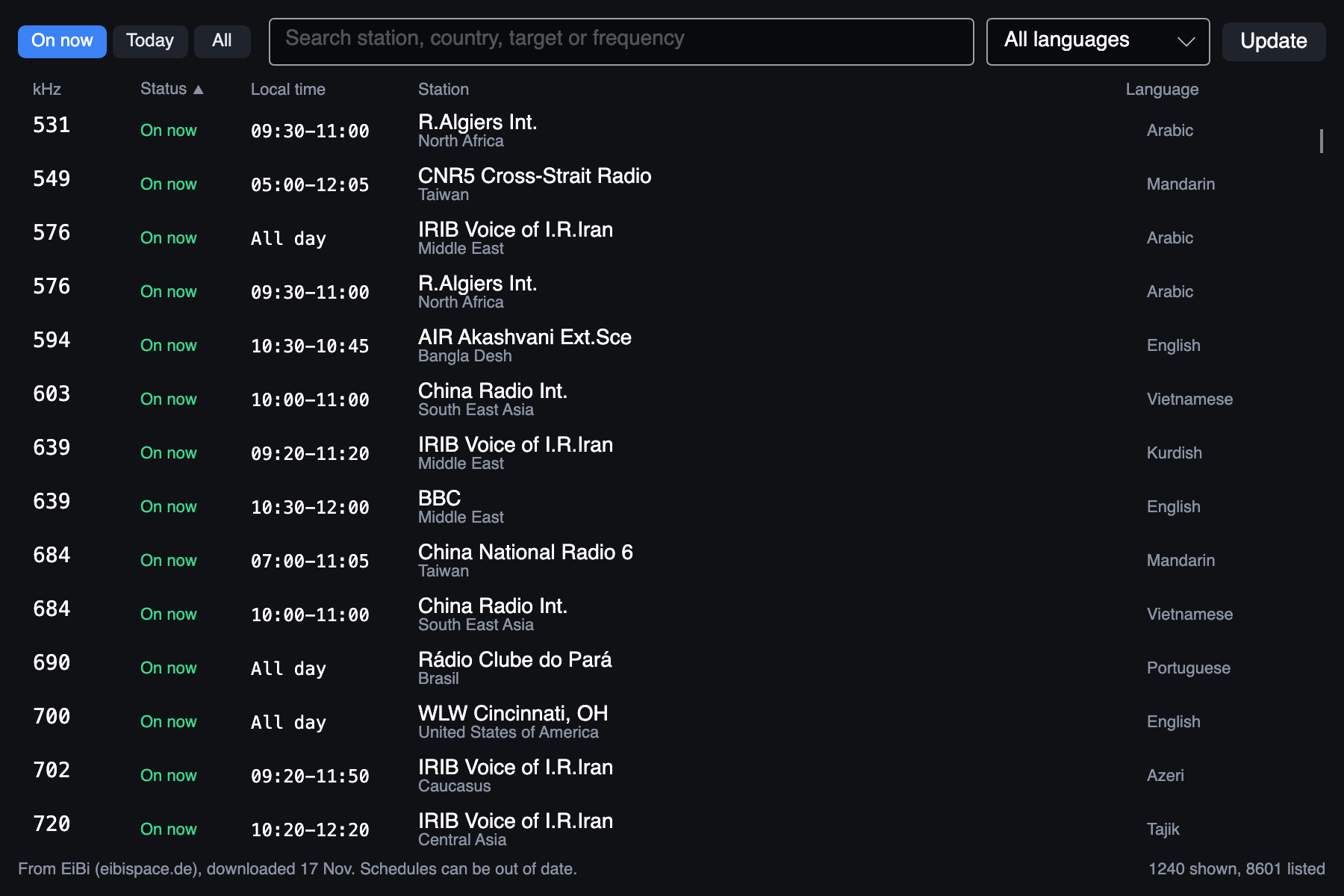
- The guide lists non-digital stations from the EiBi shortwave schedule (eibispace.de), from long wave up, in your local time. It updates itself and works from its saved copy when you're offline.
- Click a heading to sort, pick a language, or search.
- Click a station to tune it. Your mode doesn't change.
While SWL is on, an SWL button appears beside the filters. Click it to open the guide; you can close the guide at any time and SWL carries on. Right-click the button to turn SWL off.
A box at the bottom of the waterfall shows the station EiBi lists on your tuned frequency, within 1 kHz: its name, language, target area, site and end time. Any others sharing the frequency are named under it. This works however you tune, not only from the guide.
The box and the guide show what's scheduled, not what's identified from the signal, so what you're hearing may be a different station. Voice utility stations in the list usually need USB rather than SAM.
DRM
Where the DRM decoder is installed, the Mode menu has DRM. It needs the TCI server on, in Config > CAT & TCI.
- Choosing it opens a list of DRM broadcasts: click one to tune it, or tune by hand. DRM stations are listed by the centre of their channel.
- CTUN turns off while DRM is on and comes back afterwards.
- A DRM button appears beside the filters, and a box at the bottom of the waterfall shows the station, how the signal is doing and any text message it sends.
- Click the button to open the list again. Right-click it to pick another service on stations that carry more than one, or to turn DRM off.
Mute and AF work as usual. DRM is receive only.